
IPTV on Samsung TV
Set up Luno IPTV directly on your Samsung Smart TV. No extra hardware, no dongle. Full 4K Ultra HD on Tizen OS 2018 and newer models.
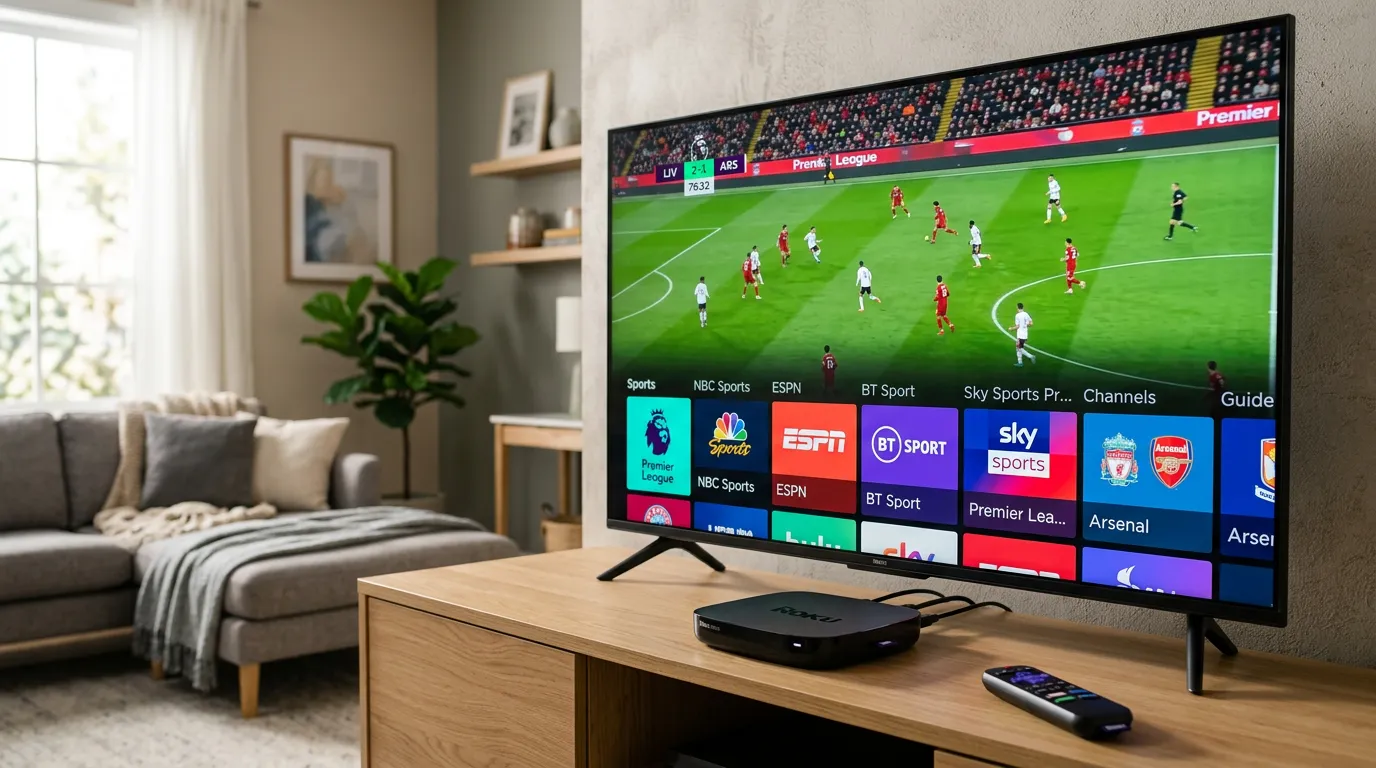
Setup Guide
Press the Home button on your Samsung remote to open Smart Hub. Navigate to the Apps section.
In the Samsung App Store, search for 'Smart IPTV' or 'SIPTV'. This is the most widely used IPTV app for Samsung Tizen TVs. Install it and launch it.
Smart IPTV displays your TV's MAC address on launch. Visit the Smart IPTV website on any browser and register your MAC address with your M3U playlist URL from Luno IPTV. You get the M3U URL in your activation email.
After entering your M3U URL on the Smart IPTV portal, restart the app on your Samsung TV. Your 26,000+ channels load automatically with the full EPG guide.
Navigate channels by category using your Samsung remote. The EPG shows program schedules up to 7 days ahead. Favorites let you pin sports channels, local news, and your most-watched content to the top.
Why Samsung Smart TV is Ideal for IPTV
- Tizen OS has one of the smoothest IPTV app experiences of any smart TV platform
- No additional hardware needed on 2018+ Samsung models with the native app store
- 4K Neo QLED and QLED panels deliver broadcast-quality sports in HDR10+ format
- Samsung's frame-rate matching tech eliminates judder on 60fps live sports feeds
- Voice control via Bixby works for app navigation without lifting the remote
Samsung TV IPTV - Common Questions
Open Smart Hub on your Samsung TV, go to the App Store, and search for 'Smart IPTV' (SIPTV). Install it, note your TV's MAC address shown on launch, then enter your Luno IPTV M3U playlist URL at the Smart IPTV website. Restart the app and your channels load automatically.
Smart IPTV (SIPTV) is the most stable and widely used app on Samsung Tizen. It handles large channel lists (like Luno IPTV's 26,000+ channels) without slowing down. IBO Player Pro is also available in the Samsung App Store for newer 2022+ models.
Yes, on all Samsung QLED and Neo QLED models from 2019 onward. Your TV needs to support 4K (UHD), and your internet connection needs at least 50 Mbps for stable 4K streaming. Luno IPTV streams 4K on all compatible Samsung TV models.
Pre-2018 Samsung TVs run an older version of Tizen that has limited app store access. If you have one of these models, we recommend adding an Amazon Fire Stick 4K or Apple TV 4K to your TV's HDMI port instead. Both are inexpensive and work perfectly.
Connect your Samsung TV to your router via Ethernet cable instead of WiFi for the most stable stream. If WiFi is your only option, make sure the TV is within 20 feet of your router. In the Smart IPTV app settings, reduce the stream buffer size from Large to Medium.
Samsung TV Compatibility for IPTV
Check which Samsung TV models and OS versions work with IPTV apps.
| Samsung TV Series | OS Version | App Store Access | IPTV Compatibility |
|---|---|---|---|
| 2018-2019 (RU/NU series) | Tizen 4.0 | Samsung App Store | Smart IPTV, IBO Player Pro |
| 2020-2021 (TU/AU series) | Tizen 5.5 | Samsung App Store | Smart IPTV, IBO Player Pro, GSE |
| 2022-2023 (BU/CU series) | Tizen 6.5+ | Samsung App Store | All major IPTV apps |
| 2024 (DU series) | Tizen 8.0 | Samsung App Store | All apps + 8K capable |
| Older (pre-2018) | Tizen 3.x | Limited | Use Fire Stick or Apple TV instead |
Setup Requirements
- Samsung Smart TV from 2018 or newer (Tizen OS 4.0+)
- Internet connection via WiFi or Ethernet cable
- 25 Mbps for HD streaming, 50 Mbps for 4K Ultra HD
- Luno IPTV M3U playlist URL (sent in your activation email)
- Smart IPTV app installed from Samsung App Store (free)
M3U vs Xtream Codes on Samsung
Samsung TV's Smart IPTV app uses the M3U playlist method. When you sign up for Luno IPTV, your activation email includes both the M3U URL and Xtream Codes. Use the M3U URL for Samsung TVs. Xtream Codes work with Fire Stick and Android TV apps.